

Drupal AI Search
Opensolr Search makes your Opensolr Index the search of the Drupal AI module. Drupal AI Search reads the very same content Data Ingestion or the Data Crawler already sent, so nothing is indexed twice, and every result shows its title, a highlighted snippet and the pages of its PDFs that match.
The same index can also answer your visitors in a chat: see Chat Bot.
See it live on our demo site (it asks for a one-time human check on your first visit):
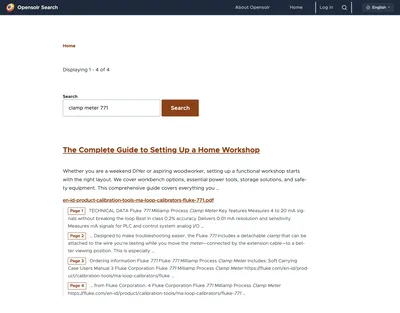
- clamp meter 771: an article with the four matching pages of its PDF under it
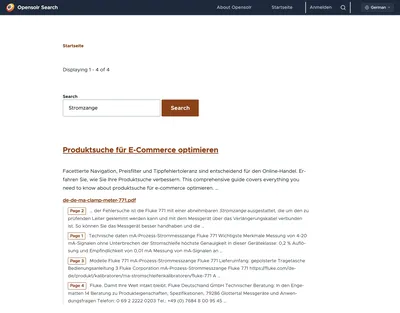
- Stromzange: the same in German, from a German PDF
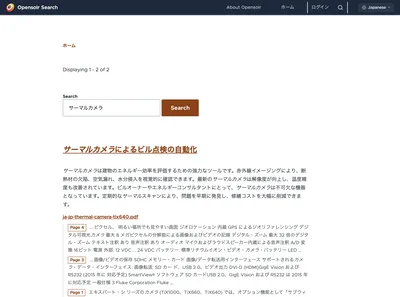
- サーマルカメラ: thermal cameras, in Japanese
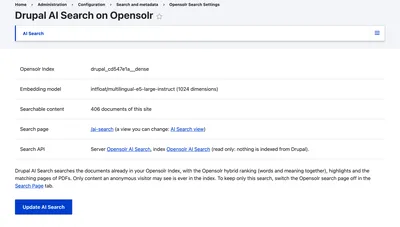
- The admin side: log in as
demowith passwordopensolr-demo. Every setting is there to look at; nothing you change is saved.
What your visitors get
Words and meaning together
The exact words people type and what they mean count in one ranking, in every language your site speaks. The same search engine as your Opensolr search page.
The right page of the PDF
When a PDF attached to a page matches, the result lists the pages that match, each with its own snippet, and each link opens the PDF at that page.
Highlighted matches
The words that matched are highlighted in the title and in the snippet, so visitors see at a glance why a result is there.
One result per page
A page and its attached documents come back as one result, never as duplicates, and showing it loads no content from your database.
Set it up
- Add the AI module. Run
composer require drupal/ai. - Enable Opensolr AI Search. It comes with Opensolr Search: enable it on the Extend page, or run
drush en opensolr_search_ai. - Send your content. Use the Data Ingestion or the Data Crawler tab, as usual. If your index already held content from an earlier version of the module, press Reset Index first, then ingest or crawl again.
- Click Set up AI Search. In Configuration → Search and metadata → Opensolr Search, open the AI Search tab. It shows your index and how many of your pages it can search; one click does the rest.
- Search. Your AI search page is ready at
/ai-search.
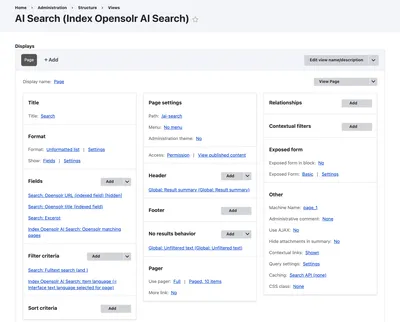
Your AI search page is a View
The setup creates the view AI Search, with its page at /ai-search. Change it like any other view: the path, the number of results per page, the fields and their order. Everything a result shows comes straight from Opensolr:
- Opensolr title and Opensolr URL: the title of the result and its link
- Excerpt: the highlighted snippet
- Opensolr matching pages: the pages of its PDFs that match, each linked to its page
On a multilingual site, visitors see the results in the language they are browsing in. Running the setup again later keeps the changes you made to the view.
Keep one search page, or both
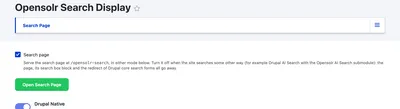
Your Opensolr search page at /opensolr-search keeps working next to Drupal AI Search. To keep only Drupal AI Search, untick Search page at the top of the Search Page tab: the page, its search box block and the redirect of the Drupal search forms all go away.
What it needs
- The Opensolr AI Search part of Opensolr Search, on Drupal 10.5 or newer, 11 or 12, with the Drupal AI module and Search API (the AI module installs it; the rest of Opensolr Search does not need it)
- A plan with AI: meaning search uses the monthly AI requests of your Opensolr plan. See What your index needs and API Quota
- Your content sent with Data Ingestion or the Data Crawler: Drupal AI Search shows what an anonymous visitor may see, and only that
Unpublish or delete a page and it leaves the results right away. With real-time sync in Data Ingestion, a page you save is searchable again in moments, and a PDF you attach to it or take off it follows it the same way.