

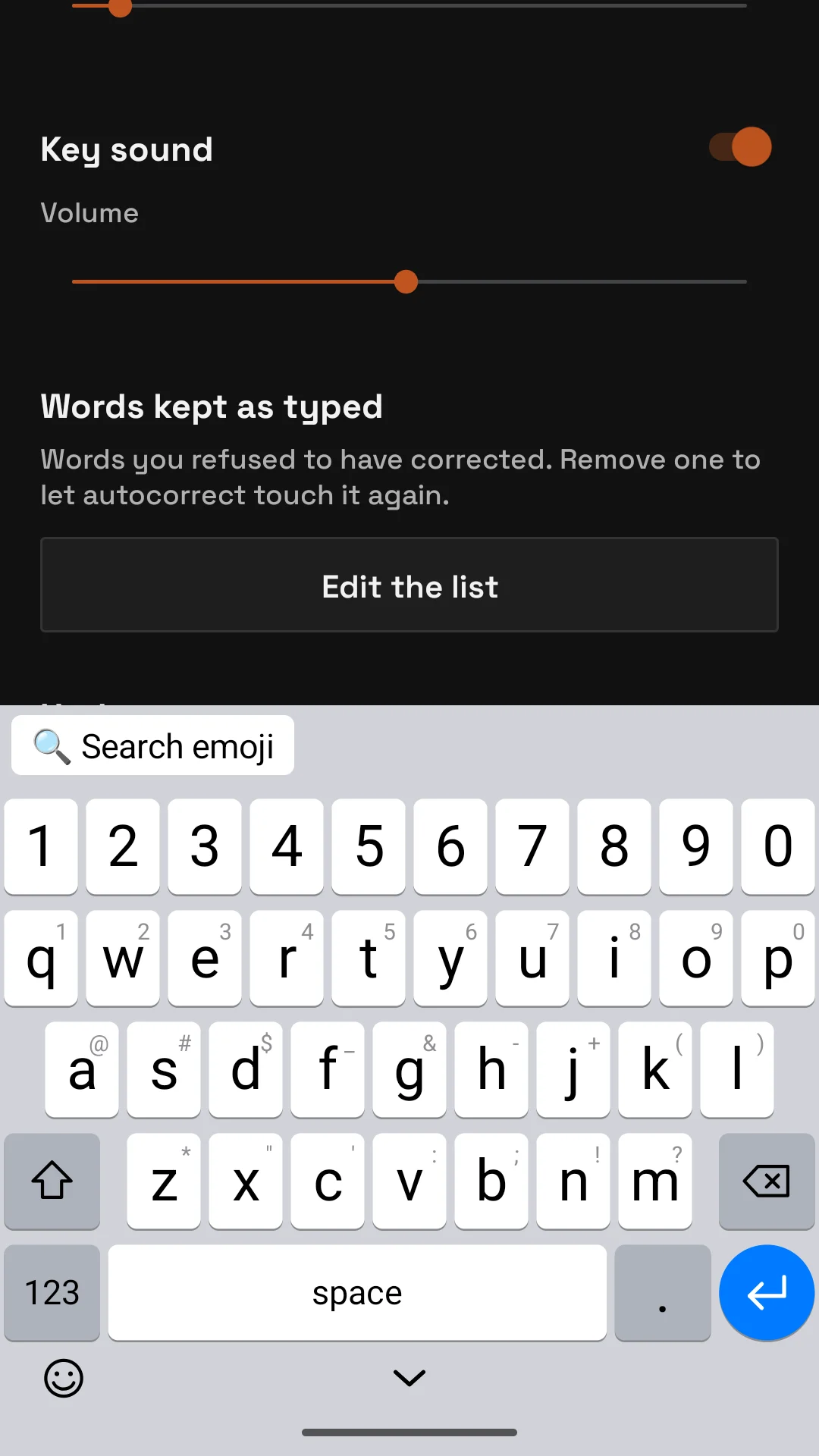
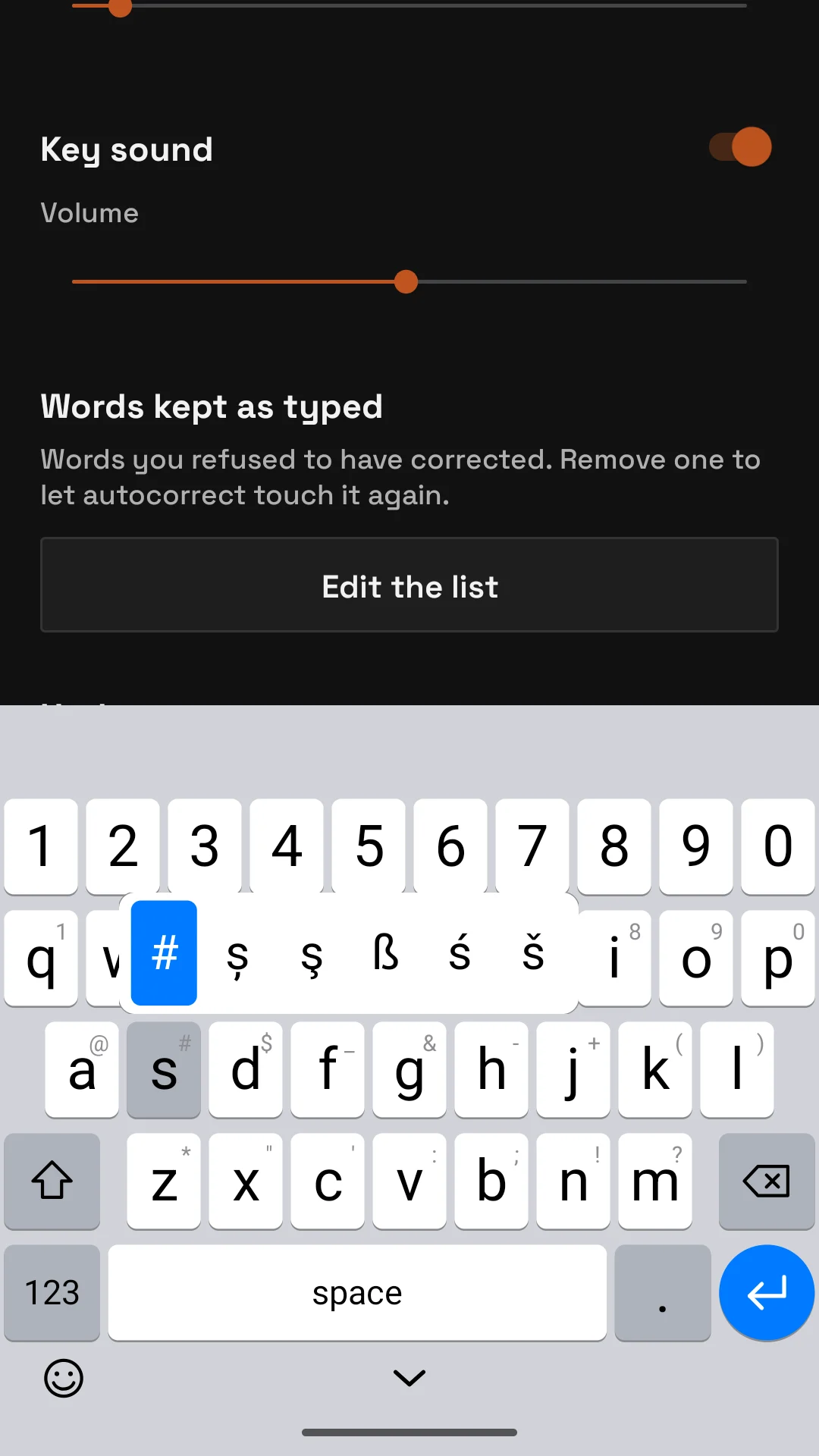
The layout is the iOS one, with a number row on top. Every key shows a balloon with its character while you hold it.
01 · Row by row
- The number row, 1 to 0, always there on the letters keyboard.
- The letters, in the QWERTY order of the iOS keyboard. The small symbol in the corner of each key is what a long press gives first.
- Shift on the left of the bottom letter row, delete on the right.
- 123 switches to numbers and punctuation, where #+= switches on to the symbols, and ABC comes back. Hyphen, slash, colon, semicolon, brackets, dollar, ampersand, at sign and quotes are on the numbers keyboard; brackets, braces, percent, caret, plus, equals, underscore, backslash, pipe, tilde, angle brackets, euro, pound, yen and bullet on the symbols one.
- Space, the period key to its right, and the round blue return key.
02 · Under the keys
- The emoji key, bottom left, opens the emoji panel.
- The chevron in the middle hides the keyboard, like the key on an iPad. Opensolr Keys draws it in place of the small system bar with the keyboard switcher.
Above the keys sits the suggestion bar: the autocorrect suggestion, or emoji that fit the word you are typing, or the emoji search box.
03 · On phones with gesture navigation
The keys at the left and right edge, q, p, 1, 0 and delete among them, answer to a tap on their outer half too: the keyboard asks Android to keep its edge gestures off the keys. Space is kept for the gesture bar underneath, never less than a minimum, and you can add to it with Bottom offset in Settings.