

The chat bot is not code inside the extension: Opensolr runs it, the extension takes you straight to it and shows it on your pages. In TYPO3, go to Site Management › Opensolr Search and open the Chat Bot tab.
The four steps
- On the Chat Bot tab, click Open the Chat Bot of your index. It opens the Chat Bot of your index in the Opensolr Control Panel (sign in if asked).
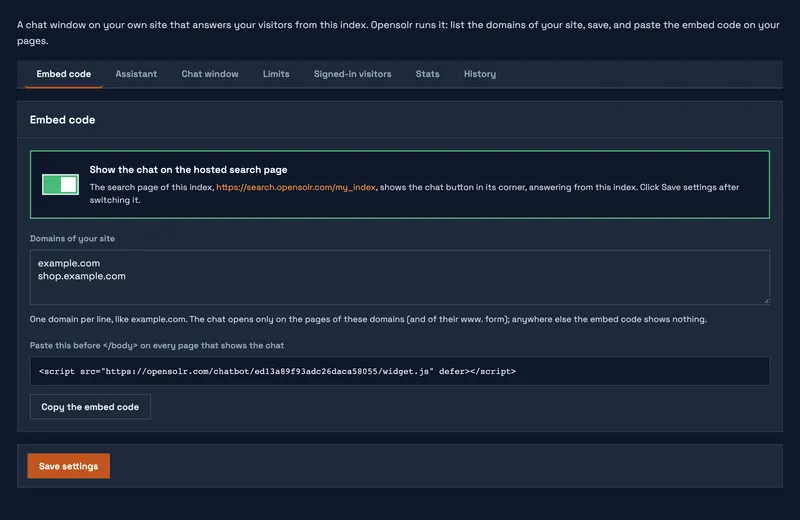
- On the Embed code tab there, write the domain of your site under Domains of your site, one per line, like
example.com. Its www. form is included. - Switch on Show the chat on the hosted search page and on your Drupal or TYPO3 site.
- Click Save settings.
That is all: the chat button shows on every page of your site, and on the hosted search page of your index. Your site picks up the switch when you open the Chat Bot tab again; otherwise it reads it again every ten minutes. Switch it off and save, and the chat goes away the same way.
The chat opens only on the domains you listed, so a copy of it on another site shows nothing and does not use your plan.
Only on some pages
Leave the switch off and add the embed code shown on the same tab to the pages where you want the chat. It is one line:
<script src="https://opensolr.com/chatbot/YOUR_CHAT_ID/widget.js" defer></script>More about the embed code, and what to add if your site sends a Content-Security-Policy: Put the chat on your site.
If the tab asks you to connect an index
The Chat Bot tab needs the extension connected to your Opensolr Index first: Connect your Opensolr account. Then fill the index with your content, with the Data Crawler or Data Ingestion, so the chat has something to answer from.
Chat Bot pages
- Chat Bot overview
- Turn it on in four steps
- Its settings, stats and history