

Search Display
The Search Display tab (/admin/config/search/opensolr/display) controls what features appear on your search page and how results look.
General settings
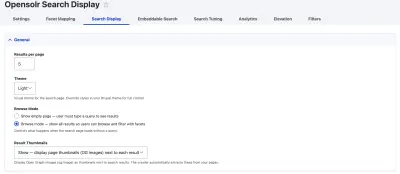
- Results per page — how many results to show per page (5 to 100, in steps of 5). Default is 20.
- Theme — Light (white background, dark text) or Dark (dark background, light text). Choose whichever fits your site's theme.
- Browse Mode — controls what visitors see before they type a query:
- "Show empty page" (default) — blank page until they search
- "Browse mode" — shows all results immediately, visitors can browse and filter with facets
- Result Thumbnails — Show or Hide the Open Graph image thumbnail next to each result. Images are extracted automatically by the crawler from your pages'
og:imagemeta tags.
Search features
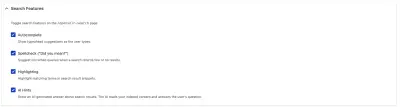
Toggle these features on or off:
💬 Autocomplete
Typeahead suggestions as visitors type. Shows saved searches + live Solr results. See Autocomplete for details.
📝 Spellcheck
"Did you mean?" suggestions when a query has possible typos or returns few results.
🔴 Highlighting
Search terms are highlighted (bold yellow) in result snippets. Makes it easy to spot why a result matched.
🤖 AI Hints
AI-generated answer panel above results. Requires a vector-enabled plan. See AI Features for details. Contact us to get started.
Search filters
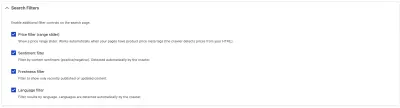
These are built-in filter options you can enable, separate from your custom facets:
- Price filter — a min/max slider for price with thousands separators (e.g. $15,637.00). Numbers are floored/ceiled to always cover the full range. Only useful if your pages have price data (e-commerce products or pages with price meta tags).
- Sentiment filter — a min/max slider (-1.00 to 1.00) for filtering by sentiment score. The crawler auto-detects sentiment from page content. Float precision with 2 decimal places.
- Freshness filter — date range picker for filtering by publish/update date.
- Language filter — filter by auto-detected page language (useful for multilingual sites).
Pagination style
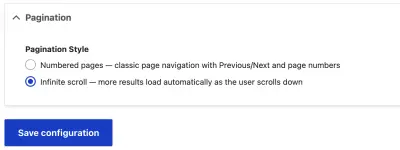
- Numbered pages (default) — classic Previous/Next with page numbers. Each page has a bookmarkable URL.
- Infinite scroll — results load automatically as visitors scroll down. Smoother experience for browsing.
Start with the defaults and adjust based on how your visitors use search. AI Hints is available on vector-enabled plans for a modern AI-powered search experience. Enable Browse Mode if you want search to double as a content directory.