

Content Types
Tell the module which of your Drupal content types should appear in search results. This controls what the crawler indexes.
Where to configure
On the Settings tab (/admin/config/search/opensolr), scroll down to the "Content Types for Indexing" section.
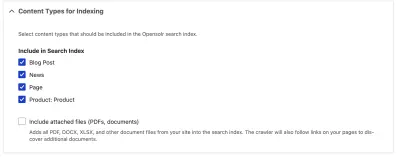
Selecting content types
You'll see a list of checkboxes with all your node types (Article, Page, etc.) and, if you have Drupal Commerce installed, your product types too.
Check the types you want searchable. Only pages of the selected types will be included in the auto-generated sitemap and indexed by the crawler.
If you add or remove content types after your first crawl, click "Run Now" in the Go Live section to have the crawler pick up the changes.
Include attached files
Below the content type checkboxes, there's an "Include attached files" checkbox. When enabled:
- The sitemap includes links to all PDF, DOCX, XLSX, PPTX, and ODT files attached to your content
- The crawler downloads these files and extracts their text
- Documents become searchable alongside your web pages
- A Web / Documents tab appears on the search page so visitors can filter between web pages and files
Supported file types
- PDF — text extraction from all pages
- DOCX — Microsoft Word documents
- XLSX — Microsoft Excel spreadsheets
- PPTX — Microsoft PowerPoint presentations
- ODT — OpenDocument text files
How it works under the hood
- Generates an XML sitemap at
/opensolr-sitemap.xmllisting all published nodes of the selected types - Injects meta tags on each page so the crawler knows which fields to extract
- The crawler visits each URL from the sitemap, reads the page content and meta tags, and adds everything to your search index
When you publish, update, or delete a node, the module automatically tells the crawler to re-index or remove that page. You don't need to manually trigger anything for individual content changes.
Commerce products
If you use Drupal Commerce, your product types appear in the same list. Products get special treatment:
- Price and currency are injected as meta tags and become facetable fields
- Product images become search result thumbnails
- A price filter slider becomes available on the search page
- Schema.org Product structured data is added automatically
Next step
After selecting your content types, head to Go Live & Crawling to start the crawler and make search available to your visitors.