

Index Tools
Delete by Query & Index Utilities
The Tools panel in your Opensolr Control Panel gives you direct control over your index data and health — from targeted document deletion to full index maintenance and optimization.
WRITE QUERY
id:123 or *:*
→
PREVIEW
Verify matches
→
DELETE
Remove matched docs
→
COMMIT
Flush to disk
→
DONE
Changes live
Write a query, preview the results, delete, commit, done.
Delete by Query
Delete by Query lets you remove documents from your Opensolr index that match a specific Solr query. Instead of wiping your entire index and re-indexing from scratch, you can surgically target exactly the documents you want to remove — whether that is a single document by ID, an entire category, URLs matching a pattern, or records older than a certain date.
How to Access It
1
Open your Control Panel and click on your index name
Navigate to My Indexes, then click the name of the index you want to manage.
2
Click "Tools" in the sidebar menu
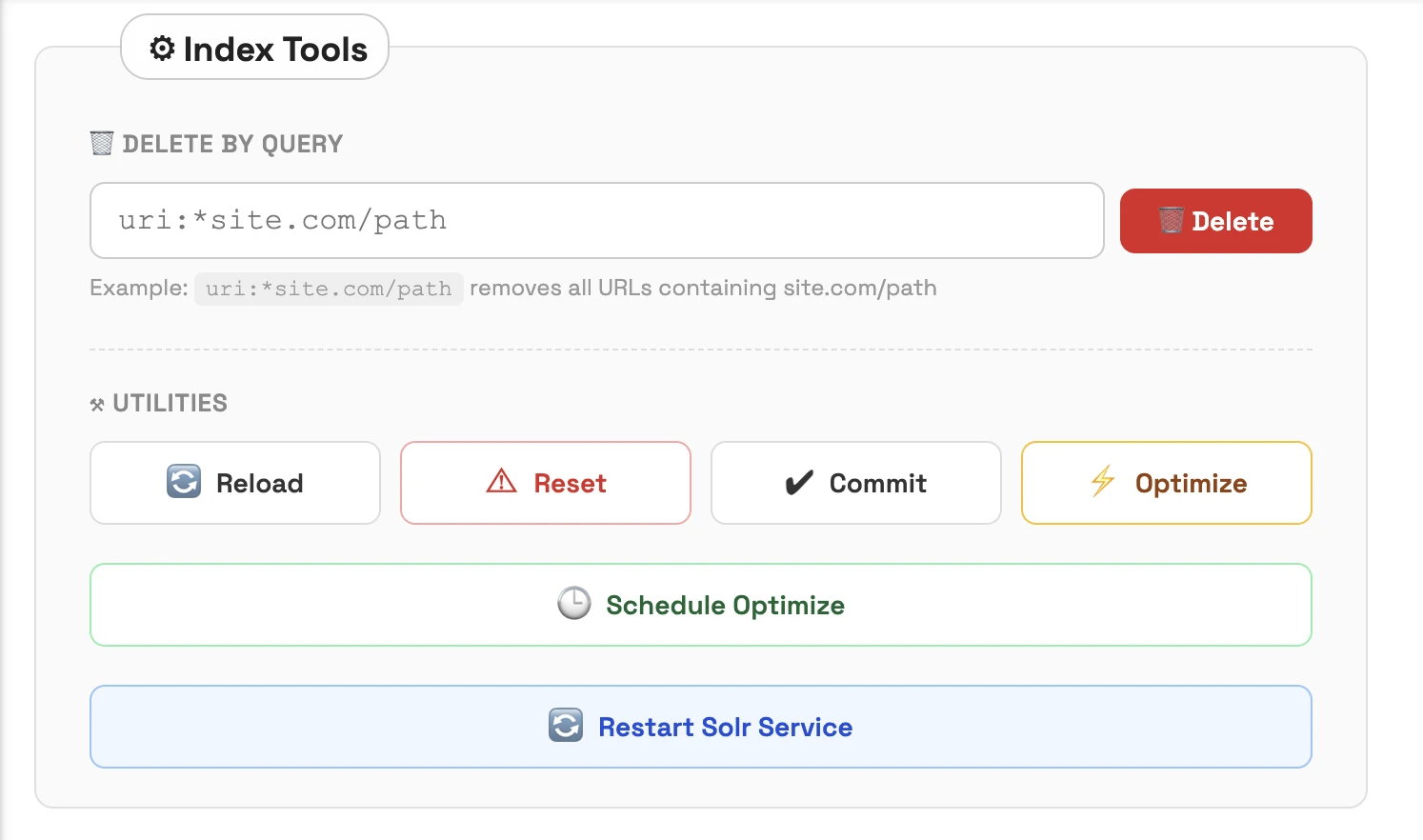
The Tools panel appears on the right side of the index Control Panel. It contains the Delete by Query form at the top, and the index utility buttons below.
3
Enter your delete query and click Delete
Type a valid Solr query into the text field, then click the red Delete button. Follow up with a Commit to make the changes visible in search results.
Query Syntax Examples
*:* — Deletes ALL documents in the index. Use with extreme caution. This is equivalent to a full wipe without resetting configuration.
id:12345 — Deletes a single, specific document by its unique ID. The safest and most precise way to remove one record.
uri:*site.com/path — Deletes all documents whose URI field contains "site.com/path". Useful for removing all pages under a specific path or domain.
category:news — Deletes all documents in the "news" category. Works with any indexed field — just replace "category" and "news" with your field name and value.
timestamp:[* TO 2024-01-01T00:00:00Z] — Deletes all documents with a timestamp before January 1, 2024. Range queries are perfect for cleaning up old or stale data.
After executing a delete query, always click Commit (or use the Commit utility button below) to flush the changes to disk and make the deletions visible in search results.
The Tools Panel
Here is what the Tools panel looks like in your index Control Panel. The Delete by Query form is at the top, followed by the utility buttons for index management operations.
Index Utilities
The utility buttons below the Delete by Query form give you full control over your index lifecycle — from reloading configuration to restarting the Solr process itself.
Reload
Reloads the Solr index configuration without restarting the Solr process. Use this after uploading new configuration files (schema.xml, solrconfig.xml, synonyms, stopwords, etc.). Changes take effect immediately and search remains available throughout — there is no downtime.
Reset
Wipes ALL data from your index completely. This is a destructive, irreversible operation — every document is permanently removed. Your configuration files (schema, solrconfig, etc.) remain intact. Use this when you need a completely fresh start, for example after changing your schema significantly and needing to re-index everything from scratch.
Commit
Forces Solr to flush all pending changes to disk and make them searchable. Solr normally auto-commits on a schedule, but after running a Delete by Query or bulk document update, use Commit to see the changes reflected in search results immediately rather than waiting for the next auto-commit cycle.
Optimize
Merges internal Solr index segments into fewer, larger segments. This improves query performance and reduces the disk footprint of your index. Optimization can be CPU-intensive on large indexes, so it is best to run it during low-traffic periods rather than during peak query load.
Schedule Optimize
Set up a recurring optimization schedule — daily, weekly, or at whatever interval suits your workload. This keeps your index segments merged and query performance optimal without requiring you to remember to run it manually. Set it once and your index stays fast automatically.
Restart Solr Service
Fully restarts the Solr process on your cluster node. This is a last-resort operation — use it if Solr becomes unresponsive, or after major configuration changes that require a full process restart rather than just a config reload. Your index will be briefly unavailable during the restart.
Pro Tips
Always commit after Delete by Query
Deletions are not visible in search results until you commit. After running a delete query, click the Commit button to flush the changes to disk immediately.
Test with SELECT before you DELETE
Before running a delete query, test it first by running the same query as a SELECT in the Solr Admin or via the API. This shows you exactly which documents will be affected, so you can verify before making any irreversible changes.
Reset is permanent — use it wisely
Reset wipes every document from your index. Only use it when you truly need to start from scratch — such as after a major schema redesign. For partial cleanup, Delete by Query is the better choice.
Schedule Optimize instead of running it manually
Rather than remembering to run Optimize periodically, use Schedule Optimize to automate it. Pick an off-peak time window and let Opensolr handle index maintenance in the background.
Explore More of the Control Panel
Learn how to create indexes, automate with the API, or reach out for help with your setup.